Knowledge
Knowledge is IntraLLM.AI’s built-in, workspace-aware knowledge base system. It lets you store documents and notes in one place, control who can access them, and then reference that content inside chat prompts when you need reliable, repeatable answers.
Use Knowledge when you want IntraLLM.AI to respond with consistent context without pasting the same information over and over.
What you can do with Knowledge
- Create knowledge bases for projects, teams, products, policies, or ongoing work.
- Upload files (e.g., specs, SOPs, meeting notes, docs) or write text content directly.
- Organize by Group and apply Access Control (who can read vs. who can edit).
- Reference knowledge in chat using
#+ the knowledge base name.
How it works (high level)
- You add content (files, folders, or text) into a Knowledge Base.
- IntraLLM.AI indexes that content so it can be retrieved later.
- In chat, you reference it with
#<knowledge-base-name>to tell the model: “Use this saved material as context for my question.”
Tip: Knowledge is designed for trusted, reusable context (docs, specs, internal notes), not for short-lived chat history.
Where to find it
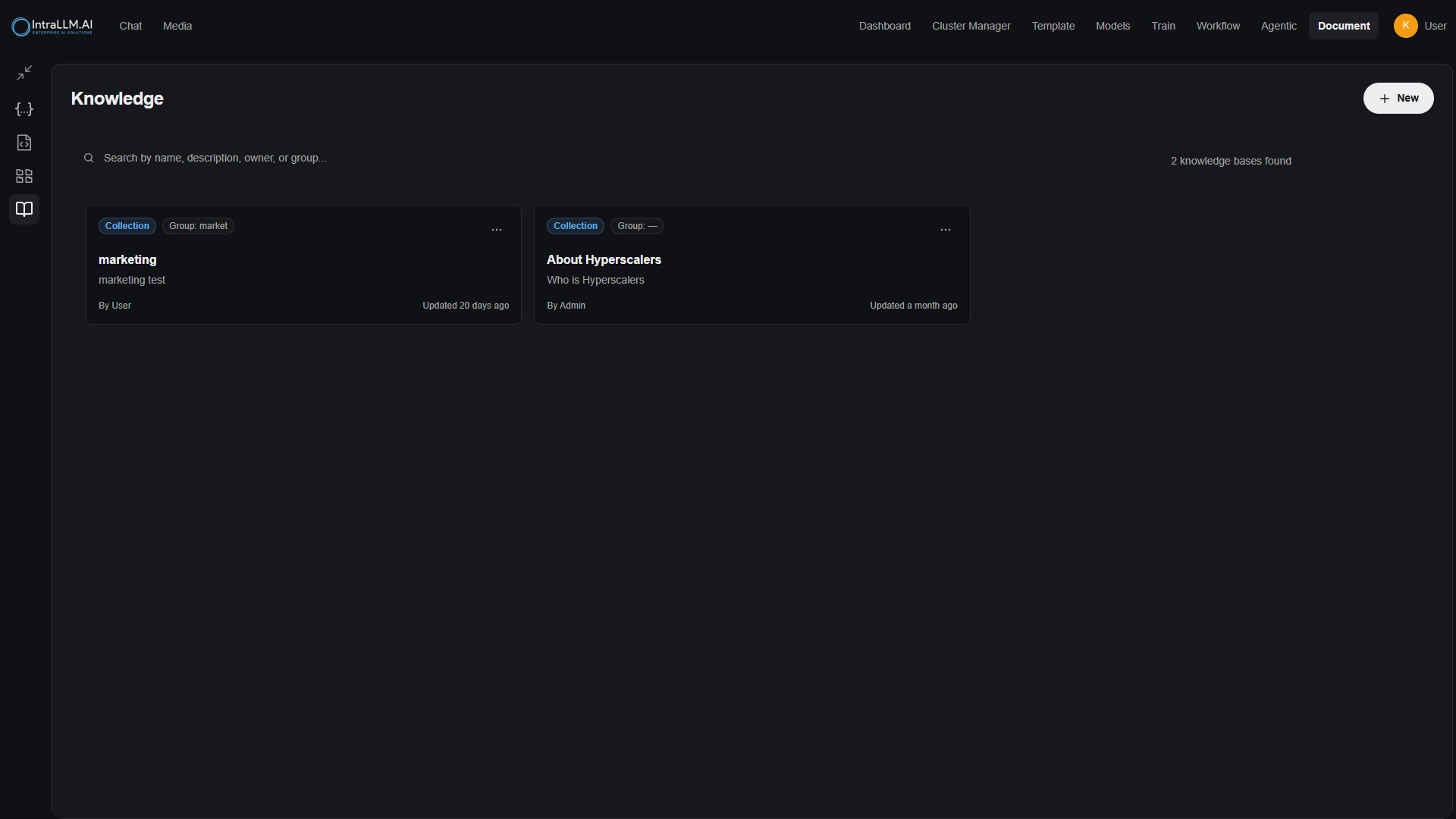
Go to Document → Knowledge from the top navigation.
On the Knowledge page you can:
- search by name / description / owner / group
- view existing knowledge bases (including the group and last updated time)
- click New to create a new knowledge base
Create a knowledge base
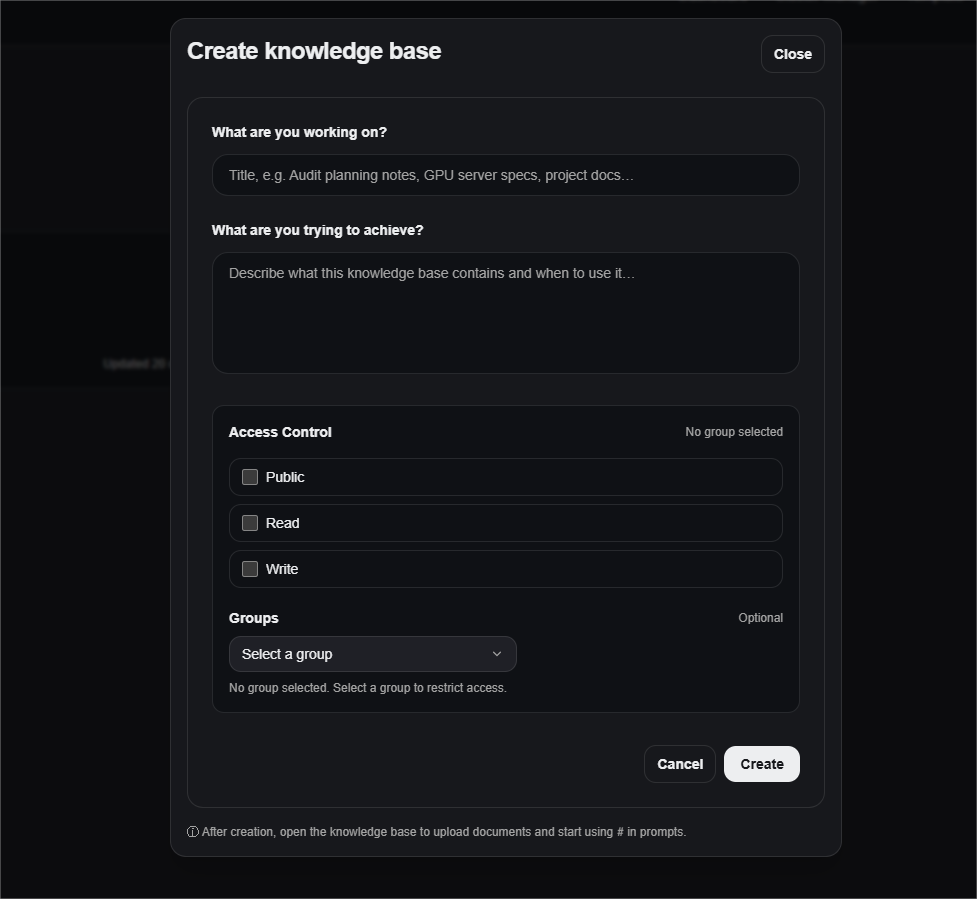
Click New on the Knowledge page to open Create knowledge base.
Fill in:
1 What are you working on?
This is the knowledge base name/title (keep it short and easy to type after #).
Example titles:
marketinggpu-server-specsaudit-planning-noteshr-policies
2 What are you trying to achieve?
A short description of what the knowledge base contains and when to use it. This helps your team pick the correct knowledge base later.
3 Access Control
Choose who can access the knowledge base:
- Public: visible/usable broadly (workspace-wide, depending on your org settings)
- Read: users can reference it in chat
- Write: users can upload/edit content
Exact behavior can vary by workspace policy. If you’re unsure, ask your admin which option is recommended for your team.
4 Groups (optional)
Select a Group to restrict access to members of that group.
Finally, click Create.
Add content to a knowledge base
After creation, open the knowledge base to upload documents and start using # in prompts.
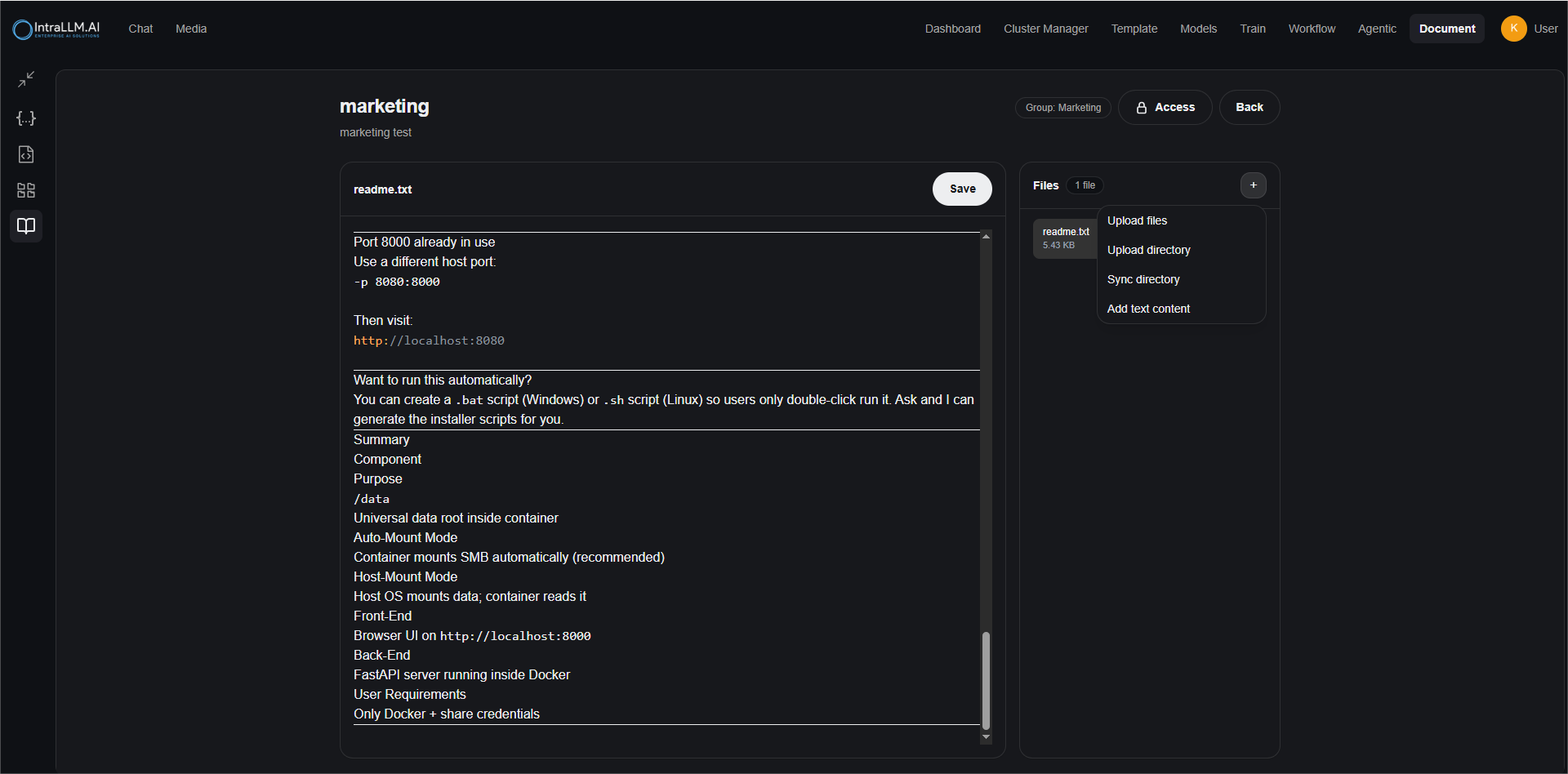
Inside a knowledge base, you’ll typically see:
- a document editor (for text-based files)
- a Files panel listing uploaded items
- a Save button to persist edits

Upload options
From the Files panel, click the + menu to add content:
-
Upload files
Add one or more documents. -
Upload directory
Add a folder of documents in one step. -
Sync directory
Keep a folder synced (useful for living documentation). -
Add text content
Create a new text entry directly in the knowledge base (great for quick notes, FAQs, or “How-to” guides).
Use Knowledge in chat
To use a knowledge base in chat, reference it with # plus its name.
Example:
#marketing Summarise our brand positioning and propose 5 tagline options.
You can also combine Knowledge with explicit instructions:
Use #gpu-server-specs. Compare H100 vs H200 options and output a table with:
- GPU
- VRAM
- target workloads
- recommended chassis
Best practice prompts
-
Ask for citations/quotes from the knowledge base:
#about-hyperscalers Answer using only this knowledge base. Quote the exact sentence for key claims. -
Ask for structured output:
#audit-planning-notes Extract the key risks and output as JSON with fields: risk, impact, controls, owner.
Access, groups, and governance
Knowledge is designed for teams, so access matters.
- Use Groups to keep sensitive content (e.g., finance, HR) limited to the right users.
- Use Read for people who should use the knowledge in chat.
- Use Write for contributors who maintain and update the content.
- The Access button (inside a knowledge base) is where you review and update these permissions.
If you can’t see a knowledge base your colleague mentioned, it’s usually a permissions or group issue.
Tips for high-quality Knowledge Bases
- One topic per knowledge base: smaller, focused bases retrieve better than one giant “everything” base.
- Write a clear description: include intended users and example questions.
- Prefer source-of-truth docs: specs, SOPs, official notes—avoid unverified fragments.
- Keep content tidy: add headings, bullet points, and short sections for easier retrieval.
- Update regularly: if your docs change, upload new versions (or use Sync directory).
Troubleshooting
It doesn’t show up in chat
- Confirm you typed the correct name after
#. - Check you have Read access (and the right group).
- If you just updated files, give indexing a moment or re-open the knowledge base and confirm the files are present.
I can view it but can’t edit
- You likely have Read access but not Write access. Ask the owner/admin to grant Write.
Which one should I use: Upload directory vs Sync directory?
- Upload directory: one-time import.
- Sync directory: best for docs that keep changing and need to stay current.