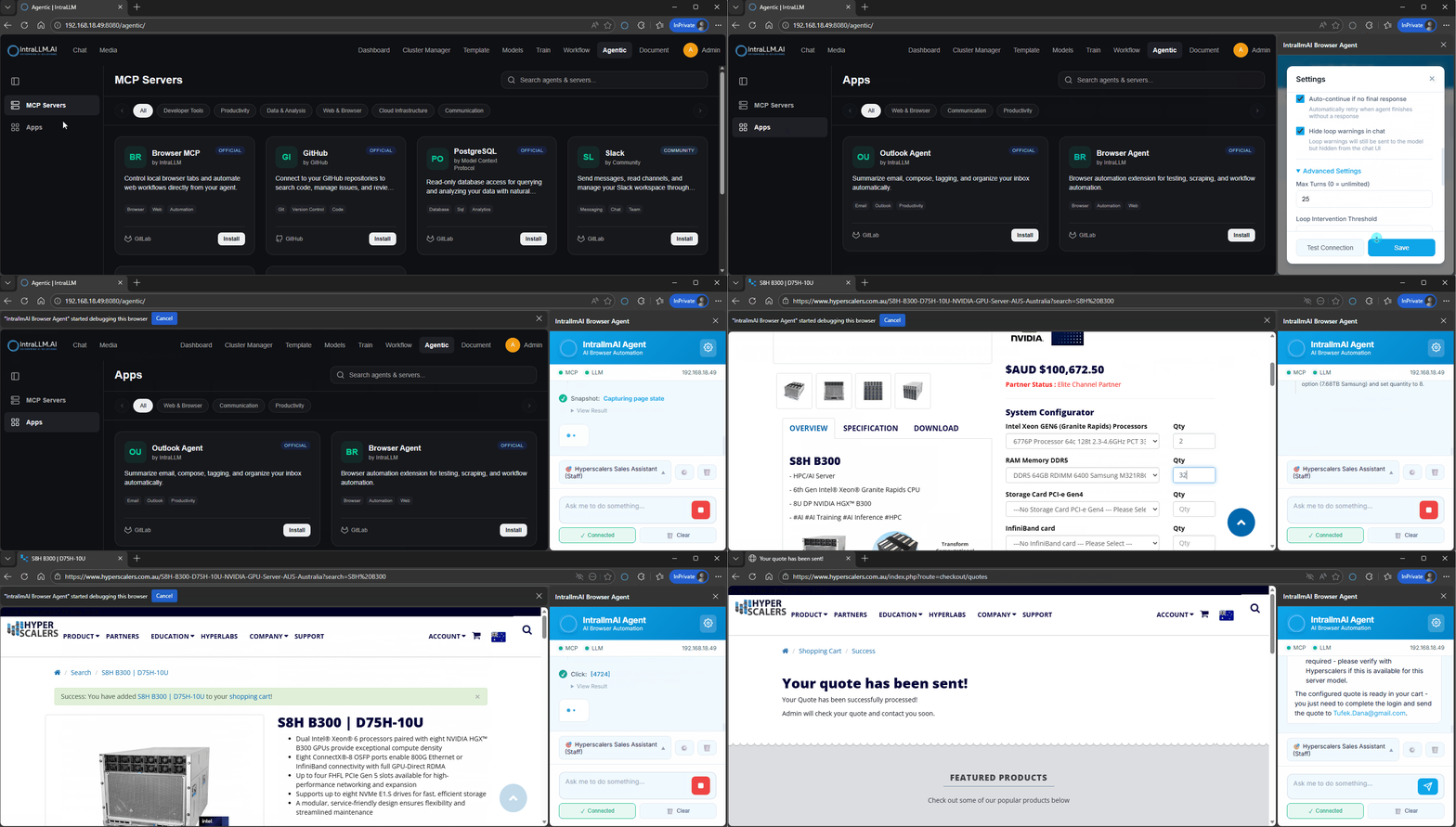
The IntraLLM Browser Extension is a companion tool that connects your browser to your IntraLLM environment. It gives you a dedicated right-side panel where installed AI agents can analyse, summarise, extract data from, or act on the page you're viewing — without switching tabs.
What it's for
- Summarise long webpages or online documents.
- Extract structured data — product specs, tables, pricing — into tables or JSON.
- Assist with workflows — repeated web steps, testing, form-filling assistance.
- Stay context-aware — agents work directly against the current tab's content, powered by your private models.
How it works
1. Choose and install agents (dashboard)
In the IntraLLM Apps page you browse and install agents:
- Agent Library — categories such as Web & Browser, Communication, Productivity.
- Examples: an Outlook Agent (summarise emails, compose messages, organise the inbox — see Smart Outlook) and a Browser Agent (automation for testing, scraping and workflow tasks).
- Select Install to enable an agent for the extension.
2. Use the panel (while browsing)
Once an agent is active, the panel appears on the right side of your browser:
- Connection status — indicators show the agent and server it is talking to.
- Agent tabs — switch between your installed agents.
- Prompt box — ask the agent to act on the current page.
- Clear — reset the context and start fresh.
- Settings (gear) — manage extension behaviour.
Typical workflow
- Open Apps → choose an agent → Install.
- Open the webpage you want to work on.
- In the panel, ask for a summary, request specs as a table/JSON, or automate a repeated action.
Tips
- Be explicit about the output format (table / JSON / bullets).
- Ask the agent to quote exact lines when you need accuracy.
- Clear before switching to a different page to avoid mixing context.
- Keep prompts short and goal-driven.
Troubleshooting
| Symptom | Try |
|---|---|
| Panel shows disconnected | Confirm the agent is installed/enabled in Apps; refresh the tab; check network access to the server shown in the panel header. |
| Output incomplete | Ask for a second pass ("scan again and include anything missed"); for long pages request section-by-section extraction. |
Related
- Smart Outlook · Process Automation
- Tools (Admin) — how agent capabilities are connected