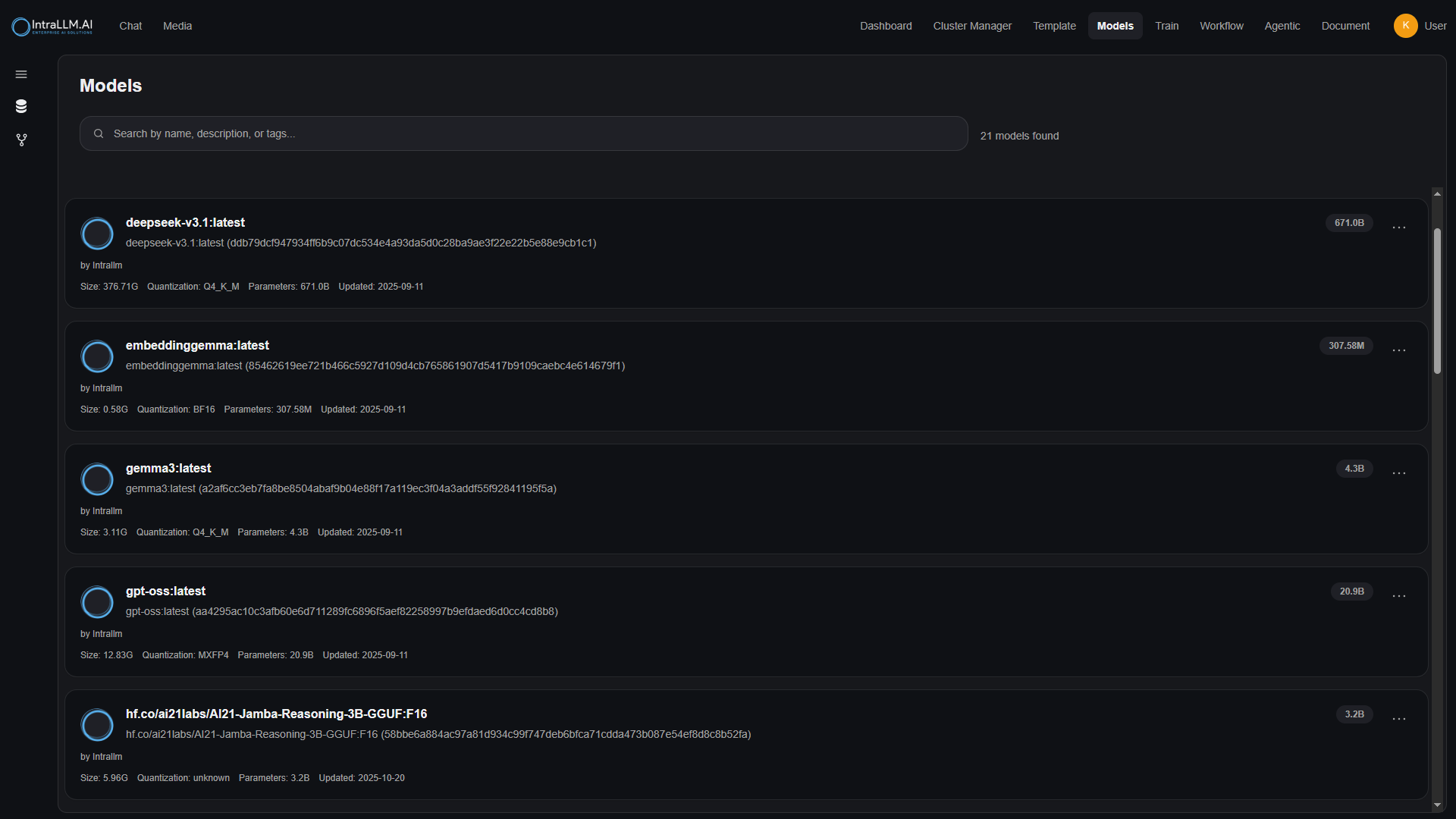
The Models module lists every model you can use, and lets you tailor models to your work. It has two areas in the module sidebar: Local Models and Repository.
Where models come from
Your workspace's models originate from three places, all managed by administrators:
- Local model services — open-weight models served inside your environment.
- External connections — OpenAI-compatible APIs your admin has approved. See Connections.
- Custom and imported models — models defined or tuned in your workspace (this page).
Local Models
The Local Models list shows installed and custom models with their details — name, size, tags and capabilities (for example vision or tools support).
For each model you may be able to:
| Action | What it does |
|---|---|
| Edit | Open the model editor to change its configuration (below). |
| Clone | Create a copy of your custom model to experiment without touching the original. |
| Delete / Remove | Remove a custom model you own. |
| Show/Hide in chat | Control whether the model appears in the chat model selector. |
Note:
Base models served directly from a model service cannot be renamed or edited in place — create a custom model from them instead. Availability of each action follows your permissions.
Editing a custom model
The model editor lets you attach everything that makes a model useful in practice:
| Field | Purpose |
|---|---|
| Avatar | An image that represents the model in the interface. |
| Model name | The display name users see in selectors. |
| System prompt | Instructions applied whenever this model is used — its default persona and rules. |
| Model parameters | Generation defaults: temperature, top-p, max tokens and similar. See Model Parameters. |
| Prompt suggestions | Example prompts shown on a fresh chat with this model — great for onboarding. |
| Documents | Attach documents that are always used as context (always-on RAG) for this model. |
| Tools / Filters / Actions | Make specific tools and processing steps available to the model by default. |
| Vision | Enable image understanding for multimodal use. |
| Tags | Labels displayed beside the model name in selectors, e.g. fast, coding, vision. |
This is the middle ground between a plain model and a template: model-level defaults with persona, knowledge and tools attached.
Import, export and download
- Export a single model's configuration, or Export all models to one portable file — useful for moving a setup between environments or keeping a backup.
- Import a configuration file to bring models into this workspace.
- Pull a model — where your deployment allows it, request a model by name/identifier from the model selector or model page and the platform fetches it for local serving. Model downloads consume disk space and bandwidth; availability depends on administrator policy. See Models (Admin).
Using models day-to-day
- In chat — pick from the model selector; only models enabled for you appear. See Chat Basics.
- Compare before deciding — see Model Comparison.
- Speed and cost differ — larger models answer better but slower. Tags and prompt suggestions help teams choose correctly.