Why compare
Different models excel at different tasks — one may be fastest and cheapest for FAQs, another strongest for reasoning, another best with images. Comparison puts evidence behind the choice instead of guesswork, for a single team or the whole enterprise.
Run a comparison
From the Compare section you can:
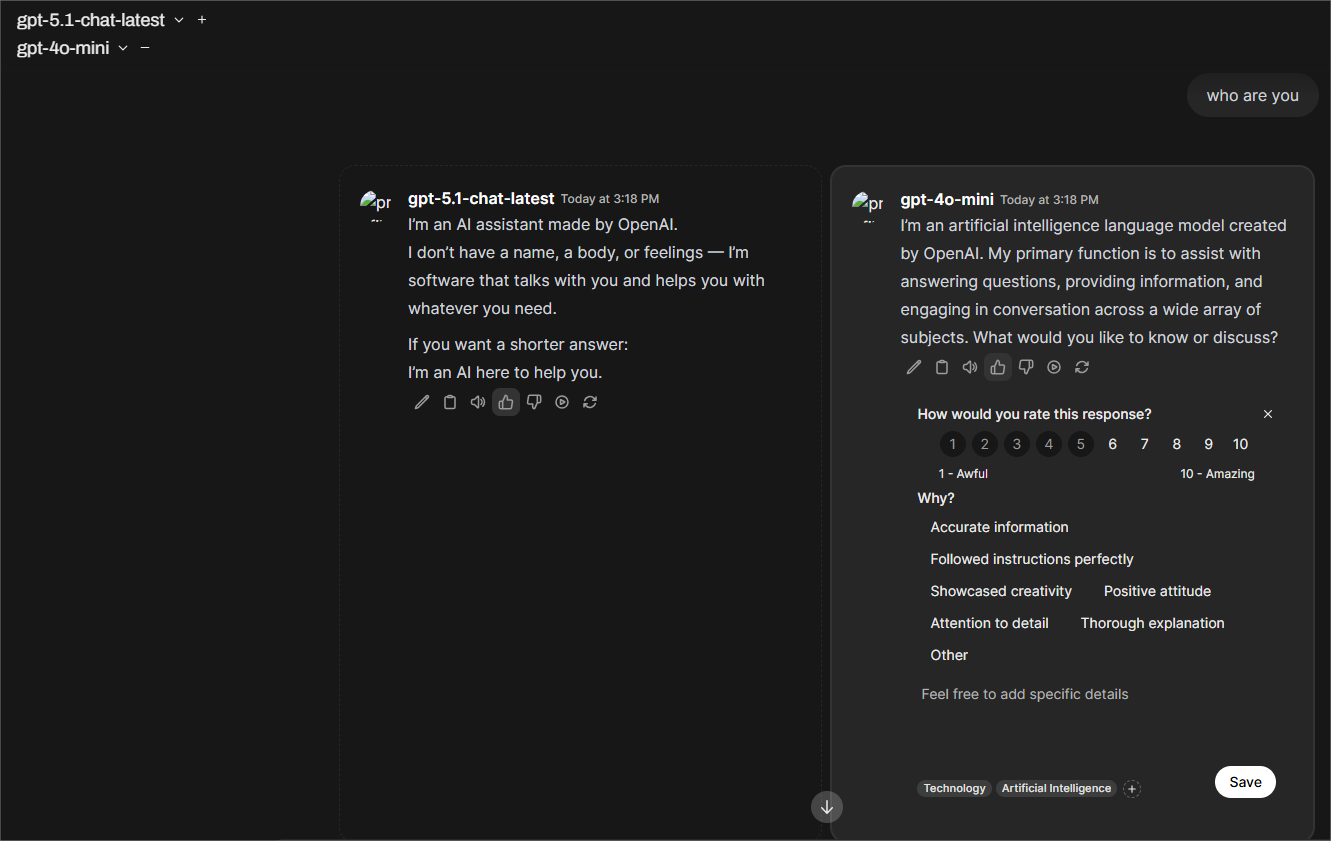
- Run side-by-side comparisons — submit one question or prompt and generate responses from multiple selected models and/or templates simultaneously, under identical conditions.
- Score results — grade each response from 1–10 for quick quantitative comparison.
- Add comments — record qualitative feedback and reasoning for each output.
- Identify best-fit models — compare tone, accuracy, structure and usefulness to decide which model or template suits your use case.
- Review evaluation history — all scores, comments and comparisons are stored for later review and trend tracking in the Evaluations section. See Evaluations.
This turns model selection into a data-driven decision: structured scoring plus human judgement.
Multi-model chat
You don't always need the Compare workspace. Inside a regular chat:
- Open the model selector.
- Select up to two models simultaneously — both answer the same message.
- Switch between the two answers with the navigation arrows.
- Context is preserved across both models, so follow-ups continue whichever answer you build on.
Example: switching per stage of a task
A multi-stage conversation might start with a simple question, move to interpreting an image, then ask for polished creative writing. Select a fast general model for stage one, a vision-capable model for stage two, and a strong writing model for stage three — switching as you go maximises speed and quality together.
When to use which tool
| Situation | Use |
|---|---|
| "Which model should my team standardise on?" | Compare workspace + Evaluations history |
| "Get a second opinion on this answer now" | Two-model chat |
| "Benchmark quality automatically over time" | Administrator Evaluations suite |