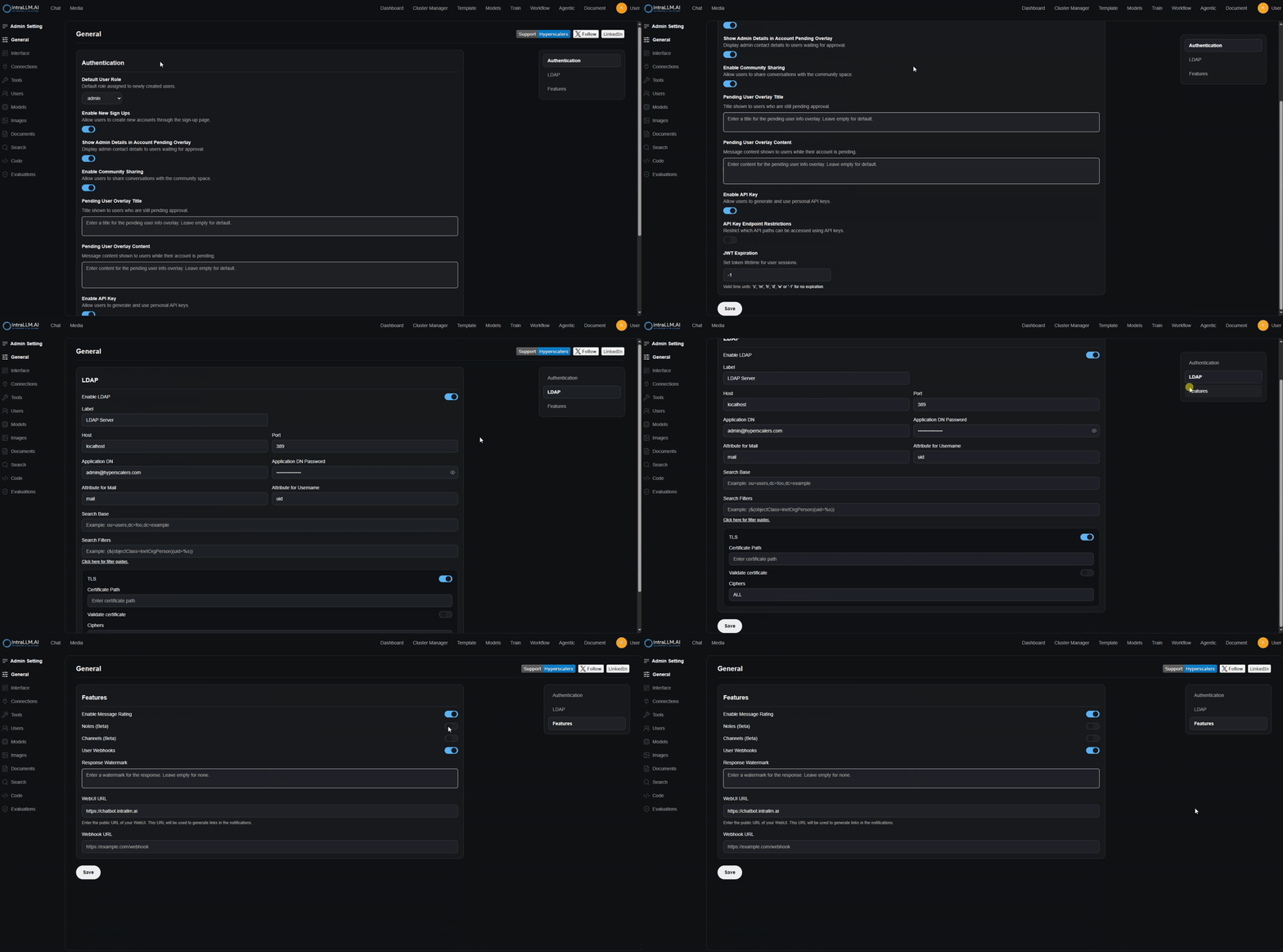
My Settings is where you customise how IntraLLM looks and behaves for you. Open it from the settings control in the Chat sidebar (or the account menu). A left sidebar lists the categories, with a Search settings box to jump straight to an option.
The categories
| Category | Covers | Guide |
|---|---|---|
| General | Theme, language, notifications, system prompt, advanced defaults | this page |
| Interface | Layout and chat behaviour options | Interface |
| Connections | Your own model endpoints | Connections |
| Tools | Tool servers that give the assistant actions | Tools |
| Personalization | Profile and memory | Personalization |
| Audio | Voices and transcription preferences | Audio |
| Chats | Import/export, archive, bulk actions | Chats & History |
| Account | Profile image, password, keys | Account & Security |
Note:
Not every user sees every category — visibility follows workspace features and your permissions. If a colleague has a tab you can't see, that's by design; ask your administrator.
General options
Theme
Choose Light, Dark, or automatic. The theme also switches from the account menu at any time.
Language
The interface language for menus, buttons and system messages. (Your conversation language is whatever you type — plus any preference you set in the system prompt.)
Notifications
Enable or disable in-product notifications. Availability varies by workspace.
System Prompt
Default instructions applied to all your chats — your personal house rules for the assistant:
Answer in concise bullet points. Prefer Australian English spelling.
When unsure, ask a clarifying question rather than guessing.
Keep it short and specific; long prompts dilute their own instructions. Per-assistant behaviour is configured in templates, which take precedence in template chats.
Advanced Parameters
Where enabled, default generation parameters (temperature, top-p, and similar) that apply to new chats. Leave at the defaults unless you know what you're changing — see Model Parameters.
Save behaviour
Some options apply immediately; many need Save. If a change seems not to have taken effect: click Save, close and reopen Settings, and refresh the page.