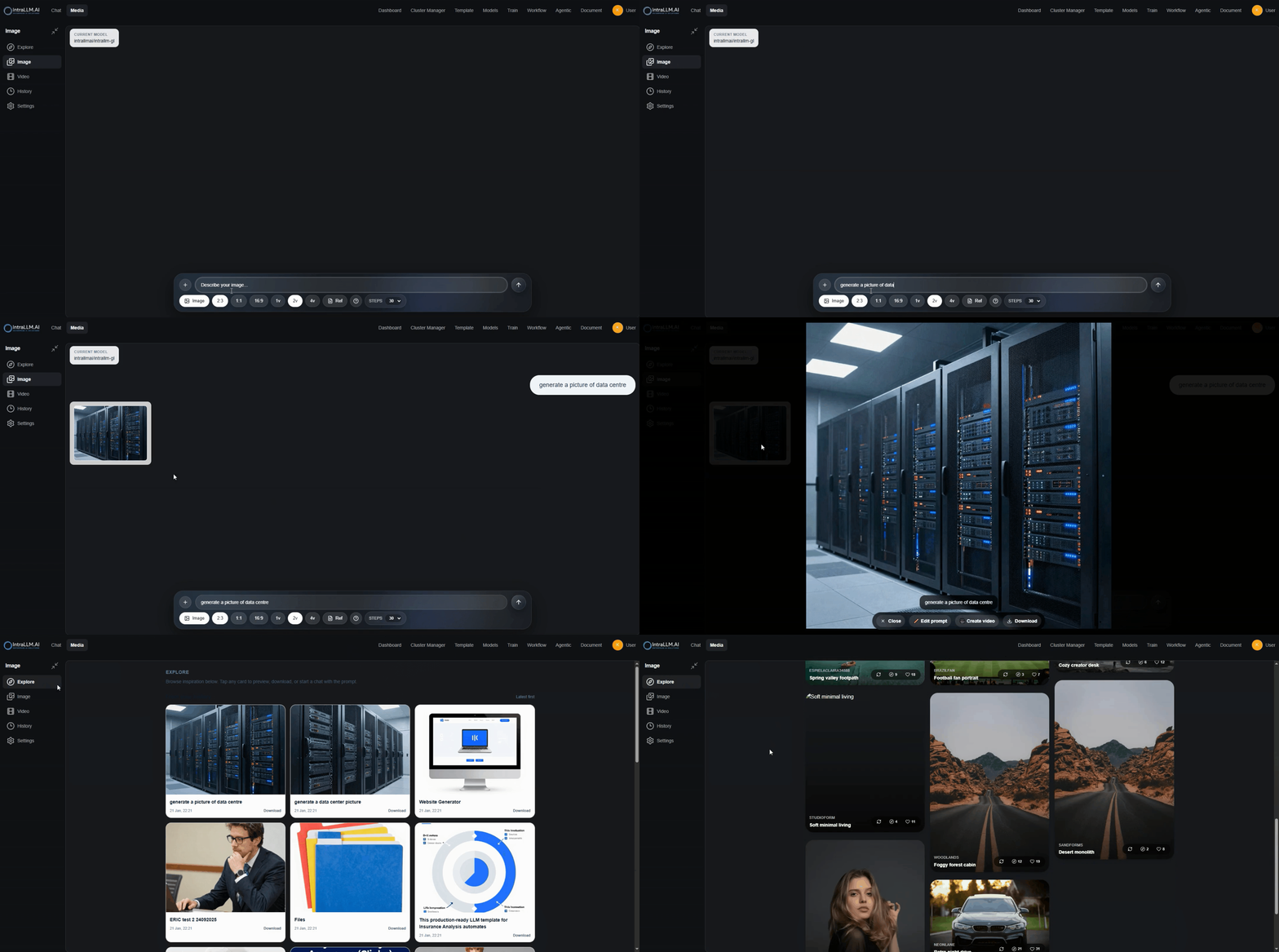
The solution
The Image Generator example shows a marketing or communications team using IntraLLM as an in-house visual studio: describe the image, generate variations, iterate fast, and keep everything on-brand — without sending briefs to external services.
The underlying capability is the Media Studio; this page is about packaging it as a team workflow.
Building an image assistant
- Create a template — "Brand Image Generator" — with a system prompt that encodes your visual guidelines (palette, composition rules, what never to include). See Creating Templates.
- Enable the capability — turn on Image Generation for the template.
- Ground it — attach a knowledge base of brand assets and past approved campaigns for reference.
- Publish to the team — colleagues start chats from the template and simply describe what they need.
Production tips
| Need | Technique |
|---|---|
| Consistent style | Save a reusable prompt prefix ("flat vector illustration, corporate blue palette, minimal…") as a Prompt Library entry. |
| Correct dimensions | Set the aspect ratio for the target channel (16:9 banner, 1:1 post, 9:16 story) in image settings. |
| Reproduce a winner | Reuse its prompt and settings; fixed seed for near-identical retries. |
| Edit rather than regenerate | Attach the current image and describe the change. |
| Batch variations | Generate several images per run and pick. |
Governance for creative teams
- Review before publication — generated images can contain artefacts or unrealistic details.
- Keep provenance simple — generations live in History; download approved finals to your asset management system.
- Respect policy — your administrator can restrict image generation by group. See Images (Admin).
- Don't request trademarks/likenesses — encode this in the template's rules.