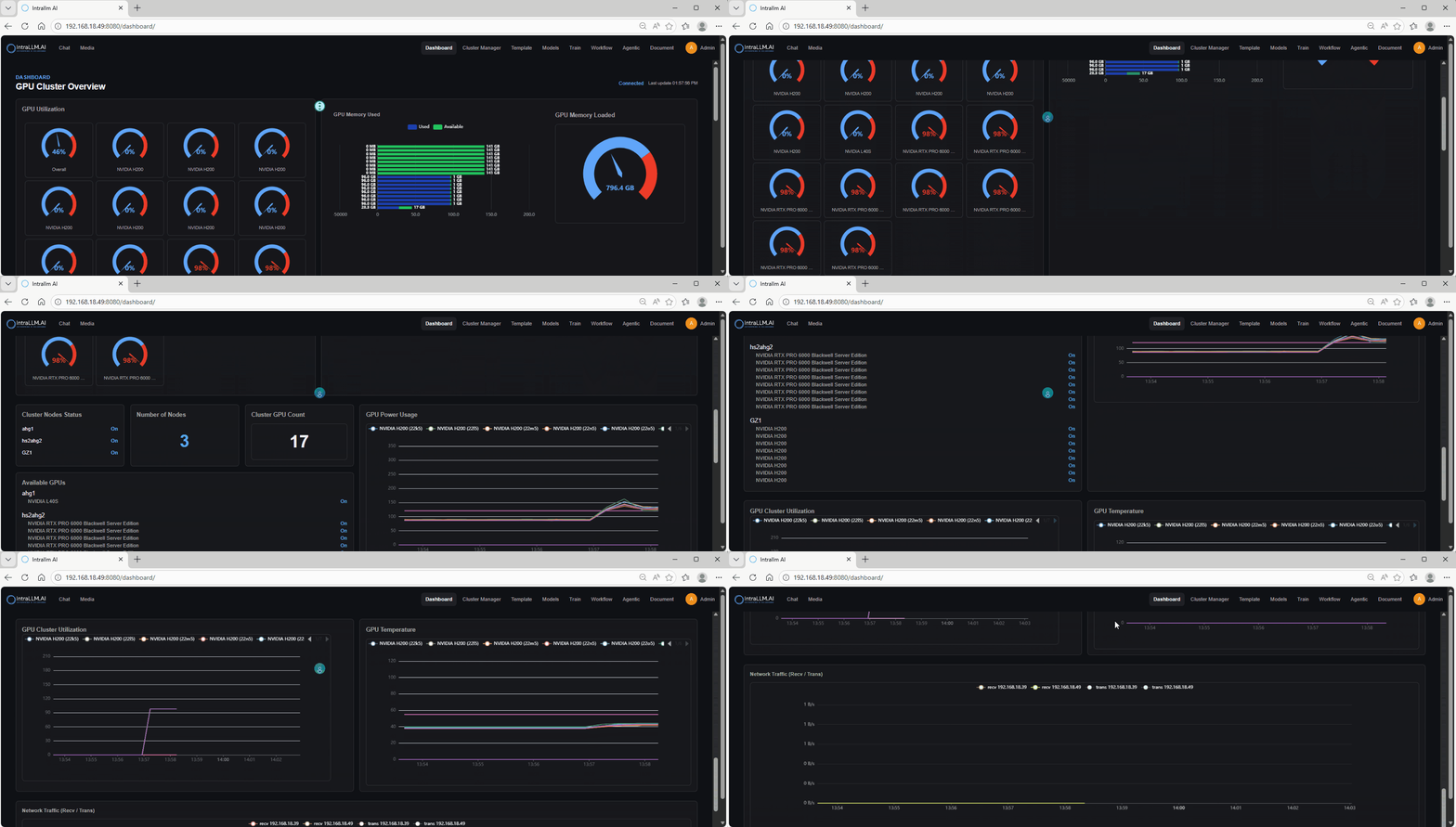
Dashboard
The Dashboard is your live overview of the GPU cluster. It’s designed for quick answers to questions like:
- How busy is the cluster right now?
- Which GPUs are free (or nearly free)?
- Is memory the bottleneck?
- Are any GPUs running hot or drawing unusual power?
- Is network traffic unusually high/low?
Tip: Use the Dashboard as a triage view. For deep management actions (start/stop, node operations, scheduling), go to Cluster Manager.
What you see on this page
GPU Utilization (per-GPU gauges)
- Avg Utilization: a quick cluster-wide average indicator.
- Per GPU: A grid of gauges showing current utilisation, each card shows a specific GPU model (e.g., NVIDIA H200 / L40S / RTX PRO).
How to use it
- Look for high utilisation (e.g., 90%+) to identify GPUs currently running jobs.
- Look for 0–5% utilisation to find GPUs that are likely idle.
- If Avg Utilization is low but a few GPUs are high, workloads are concentrated on specific GPUs.
GPU Memory Used (used vs available)
A grud of bar charts that split memory into:
- Used (Red)
- Total (Per GPU)
- Available (Remaining memory)
This answers: “Is this GPU compute-bound or memory-bound?”
How to use it
- High utilisation + high memory used often means a large model/job is running.
- Low utilisation + high memory used can indicate:
- a model is loaded but not actively running
- memory not released after a job
- High utilisation + low memory used is common for smaller models or compute-heavy kernels.
GPU Memory Loaded (cluster-level gauge)
A single bar chart card showing total memory currently “loaded” across the cluster (helpful for spotting memory pressure at a glance).
How to use it
- If this stays high while average utilisation is low, consider checking for:
- persistent model loads
- long-lived processes holding VRAM
- containers that didn’t exit cleanly
Cluster summary and availability
Cluster Nodes Status
A list of nodes with an Status indicator (Online/Offline).
How to use it
- Confirm all expected nodes are Online.
- If a node is Offline, you’ll likely see fewer GPUs available and missing metrics.
Number of Nodes / Cluster GPU Count
Two quick totals:
- Nodes Online: how many nodes are online/registered.
- GPUs Online: total GPUs detected across the cluster.
How to use it
- Use these to quickly validate cluster capacity (especially after maintenance or scaling events).
Performance and health charts
GPU Power Usage
A time-series chart of GPU power draw.
How to use it
- Rising power usually correlates with workload ramp-up.
- Sudden drops can indicate a job completed, stopped, or failed.
- Compare multiple GPUs to spot imbalance or abnormal behaviour.
GPU Cluster Utilization
A time-series view of utilisation trends over time.
How to use it
- Spot busy periods, idle windows, and spikes.
- If utilisation is constantly near 0, the cluster may be under-used or jobs are not being scheduled correctly.
GPU Temperature
A single bar chart card showing average temperature of all GPUs
Network Traffic (Recv / Trans)
A time-series chart of network throughput, typically receive and transmit per node/IP.
How to use it
- High network traffic may indicate:
- dataset loading
- distributed training / multi-node communication
- heavy file sync or downloads
- Very low traffic during expected distributed workloads can indicate connectivity or configuration issues.
Common tasks
1 - Find GPUs to run a job
- Check GPU Utilization for near-idle GPUs.
- Confirm Available GPUs includes the model you need.
- Verify memory headroom via GPU Memory Used.
2 - Diagnose “slow training”
- Check if utilisation is low but memory is high (possible bottleneck, idle kernels, or data pipeline issue).
- Look at Network Traffic for data-loading bottlenecks.
- Review Power Usage (flat/low power often correlates with low compute activity).
3 - Watch for overheating / throttling risk
- Use GPU Temperature to detect rising trends and outliers.
- Cross-check Power Usage and Utilization to understand what’s driving heat.
Tips
- Use the Dashboard first to observe, then jump to Cluster Manager for actions.
- For the most accurate interpretation, always consider utilisation + memory + power together.
- If a GPU looks “busy” but no job should be running, check for long-lived processes or stale containers.