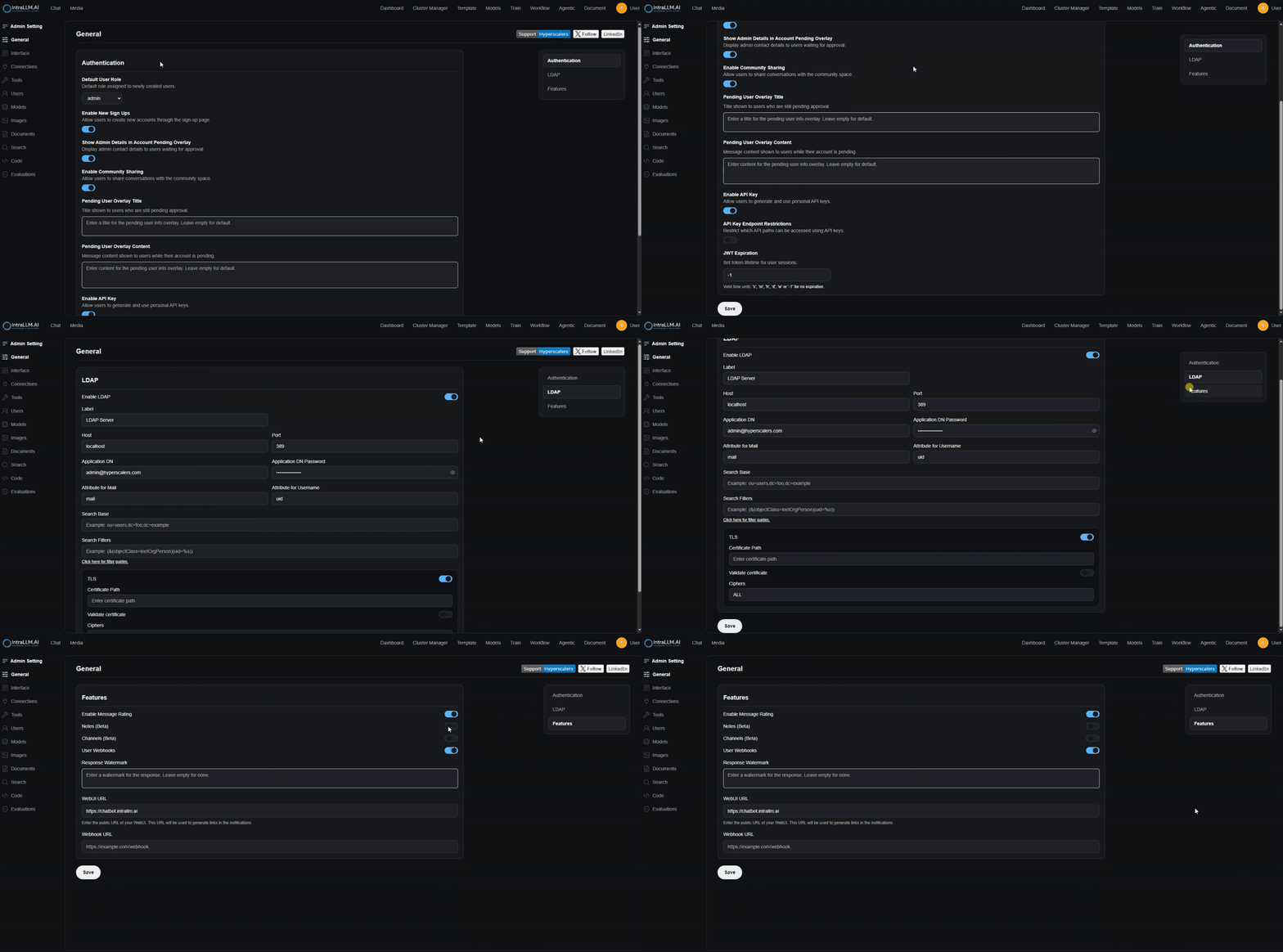
Settings
The Settings panel lets you customise how IntraLLM.AI looks, behaves, and connects to external capabilities. It’s where you control things like:
- Theme and language
- UI layout and chat experience
- Auto-generated chat features (titles, tags, follow-ups)
- Tool server connections (for custom tools/functions)
- Chat import/export and archiving
- Profile and password
Settings are organised into categories in a left sidebar, with a Search box to quickly find options.
Open and use Settings
- Open Settings from the app (commonly via the user menu or a settings/gear control).
- Use the left sidebar to select a category.
- Adjust toggles, dropdowns, and inputs as needed.
- Click Save (when available) to apply changes.
- Use the X button to close the panel.
Tip: Some settings apply immediately, but many require Save—especially when you change preferences that affect chat generation or tool connections.
General
General Settings covers global preferences that affect your overall experience.
Theme
Choose the appearance mode (e.g., Dark).
Language
Select the UI language (e.g., English).
Notifications
Enable/disable notifications (availability may vary by workspace).
System Prompt
The System Prompt sets default instructions that guide the assistant’s behaviour.
Use this if you want the assistant to consistently follow a rule or style, for example:
- “Answer in concise bullet points.”
- “Prefer Australian English spelling.”
- “When unsure, ask a clarifying question.”
Good practice: Keep the system prompt short and specific. Long prompts can reduce clarity.
Advanced Parameters
This section (when enabled) exposes additional generation or behaviour parameters. Exact options may vary by workspace configuration.
Interface
Interface Settings control how the UI and chat experience are presented.
UI options
-
High Contrast Mode (Beta)
Improves readability by increasing contrast. -
Landing Page Mode
Controls where the app takes you on open/login (e.g., default landing page). -
Chat Bubble UI
Enables a “bubble” style chat layout. -
Widescreen Mode
Uses a wider layout to show more content on screen. -
Chat direction
Controls the chat flow direction (e.g., Auto). -
Notification Sound
Enables sounds for notifications. -
Always Play Notification Sound
Plays notification sounds more consistently (even when the tab is not focused, depending on browser rules). -
Toast notifications for new updates
Shows small popup notifications for updates. -
Show “What’s New” modal on login
Displays a changelog/announcement modal after you sign in.
Chat automation options (Interface → Chat section)
These options control auto-generated helpers inside chat:
-
Title Auto-Generation
Automatically suggests or creates a chat title. -
Follow-Up Auto-Generation
Generates suggested follow-up questions. -
Chat Tags Auto-Generation
Automatically proposes tags for organising chats. -
Detect Artifacts Automatically
Detects when your response should be rendered as an “artifact” (e.g., code blocks, structured outputs, rich views), depending on your workspace features.
Tip: If you prefer full manual control, turn these options off to reduce automatic suggestions.
Tools
The Tools section is where you connect external tool servers that expose custom tools/functions to the chat assistant.
Manage Tool Servers
Tool servers are typically OpenAPI-compatible endpoints that IntraLLM.AI can call to perform actions (for example, internal APIs, automation services, or custom utilities).
Common actions in this section include:
- Add Connection: register a new tool server endpoint
- Save: persist changes and enable the connection for chat use
Note: Tool servers often require admin approval, network access, and (in many cases) an API key. If you’re not sure what to add here, ask your workspace admin.
Chats
Chat settings are for importing/exporting, archiving, and bulk maintenance.
Import Chats
Upload a JSON export from supported sources (e.g., a WebUI export or ChatGPT export, depending on your environment).
Export Chats
Download all conversations as a JSON archive.
Archived Chats
View chats that were previously archived.
Archive All Chats
Moves every conversation into the archive (useful for cleanup without deleting).
Delete All Chats
Permanently removes all stored conversations.
Caution: Delete All Chats is destructive. Make sure you export your chats first if you might need them later.
Refresh
Reloads chat metadata and status (use after imports/exports or large changes).
Account
Account settings manage your profile and password.
Profile
Update your profile image and display details.
Profile Image options commonly include:
- Use Initials: generates an avatar from your initials
- Use Gravatar: uses your Gravatar (based on your account email)
- Use Image Generator: creates an avatar using an image generation workflow (if enabled)
- Custom image prompt: optionally provide guidance for generated avatars
You can also update your Name (display name).
Update Password
Change your password by providing:
- Current password
- New password
- Confirm new password
Then click Update.
Other sections you may see
Depending on your workspace configuration, additional categories may be available, such as:
- Connections (model/provider endpoints)
- Personalization
- Audio
- About
If you don’t see a section that your colleague has, it’s usually due to permissions or workspace feature flags.
Troubleshooting
My changes didn’t apply
- Make sure you clicked Save (when present).
- Close and reopen Settings to confirm it persisted.
- Some settings may require refreshing the page.
I can’t add tool servers
- You may need admin permissions.
- The server may not be reachable from your network.
- An API key or correct endpoint format may be required.